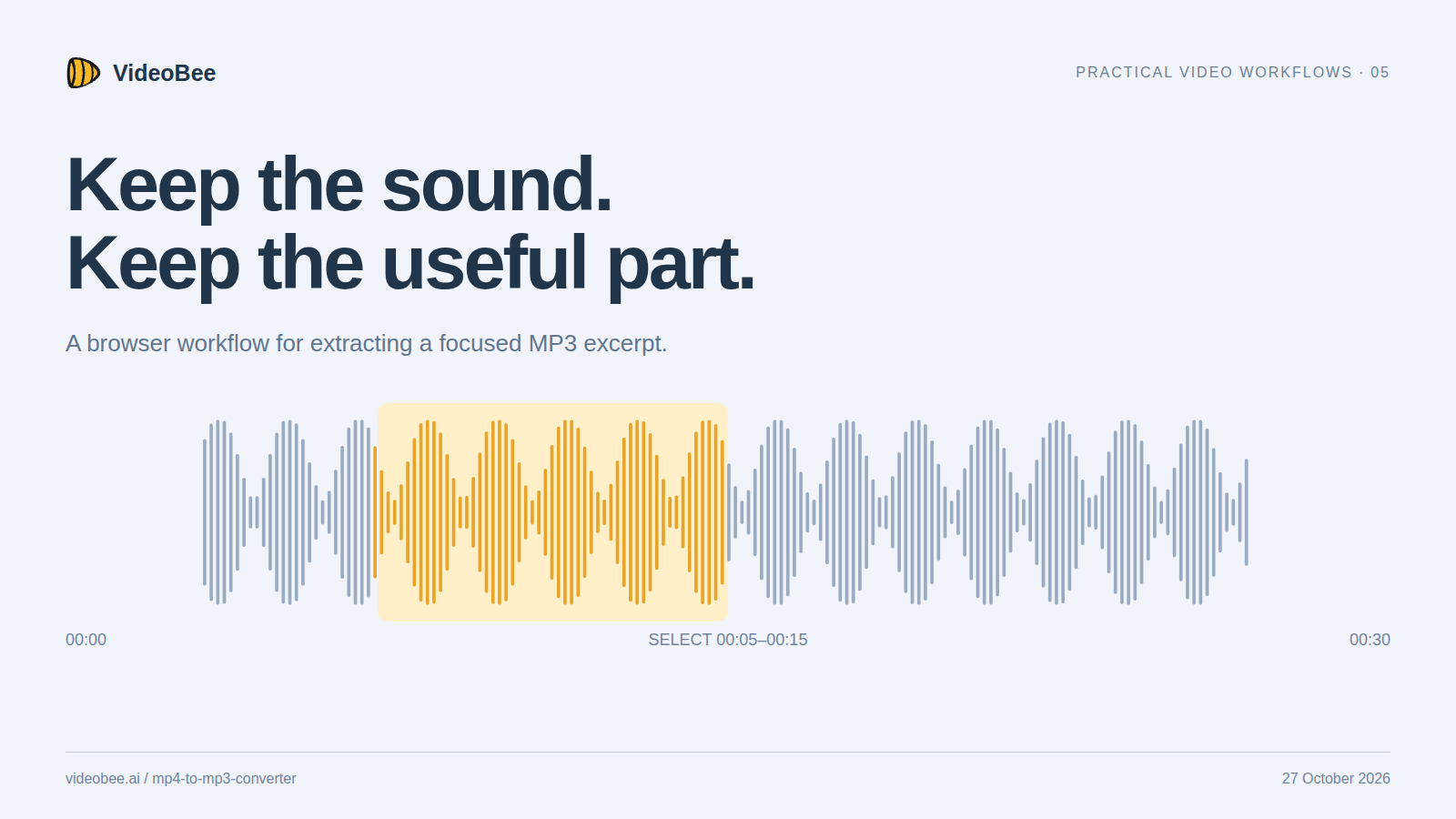
When you need one answer from a recorded interview or a short explanation from a video, exporting the entire soundtrack creates extra work. Select the time range first, keep the audio settings deliberate, and verify the downloaded file. You can do that in a browser without installing an editor.
This guide includes a measured VideoBee export and optional command-line checks for developers building a repeatable media workflow. It is part of a VideoBee promotion, prepared with AI assistance. The test combines public CC0 footage with a generated test tone and was performed on October 27, 2026.
Confirm that the video contains the sound you need
An MP4 can contain video, audio, or multiple tracks. A file extension does not guarantee that there is an audio track to extract. Play the original and check the section you intend to use before troubleshooting a converter.
For a technical check, list its audio streams:
ffprobe -v error -select_streams a \
  -show_entries stream=index,codec_name,sample_rate,channels \
  -of json input.mp4
An empty stream list means there is no audio stream for the converter to turn into MP3. A present track can still be silent: that was true of the original flower sample used to build this fixture, so the test replaced it with a known signal. If the file has several audio tracks, identify the one you need; a converter's default choice may not be the desired language or commentary track.
Select the range in the browser
Open VideoBee's MP4 to MP3 converter and choose your video. After it loads, leave MP3 as the output format and open the file's settings.
For this walkthrough, the input was a 30.03-second H.264/AAC MP4 derived from MDN's CC0 flower sample. Its silent source track was replaced with a generated 440 Hz tone whose amplitude changes over time. The resulting fixture contained AAC audio and measured 6,182,751 bytes. It was a media-format test, not a recorded interview or a speech-quality benchmark.
I selected 00:00:05.00 as the start and 00:00:15.00 as the end. Volume stayed at 100%; fade-in, fade-out, and reverse were left off. After applying those settings, I ran the conversion and downloaded the MP3 without signing in.
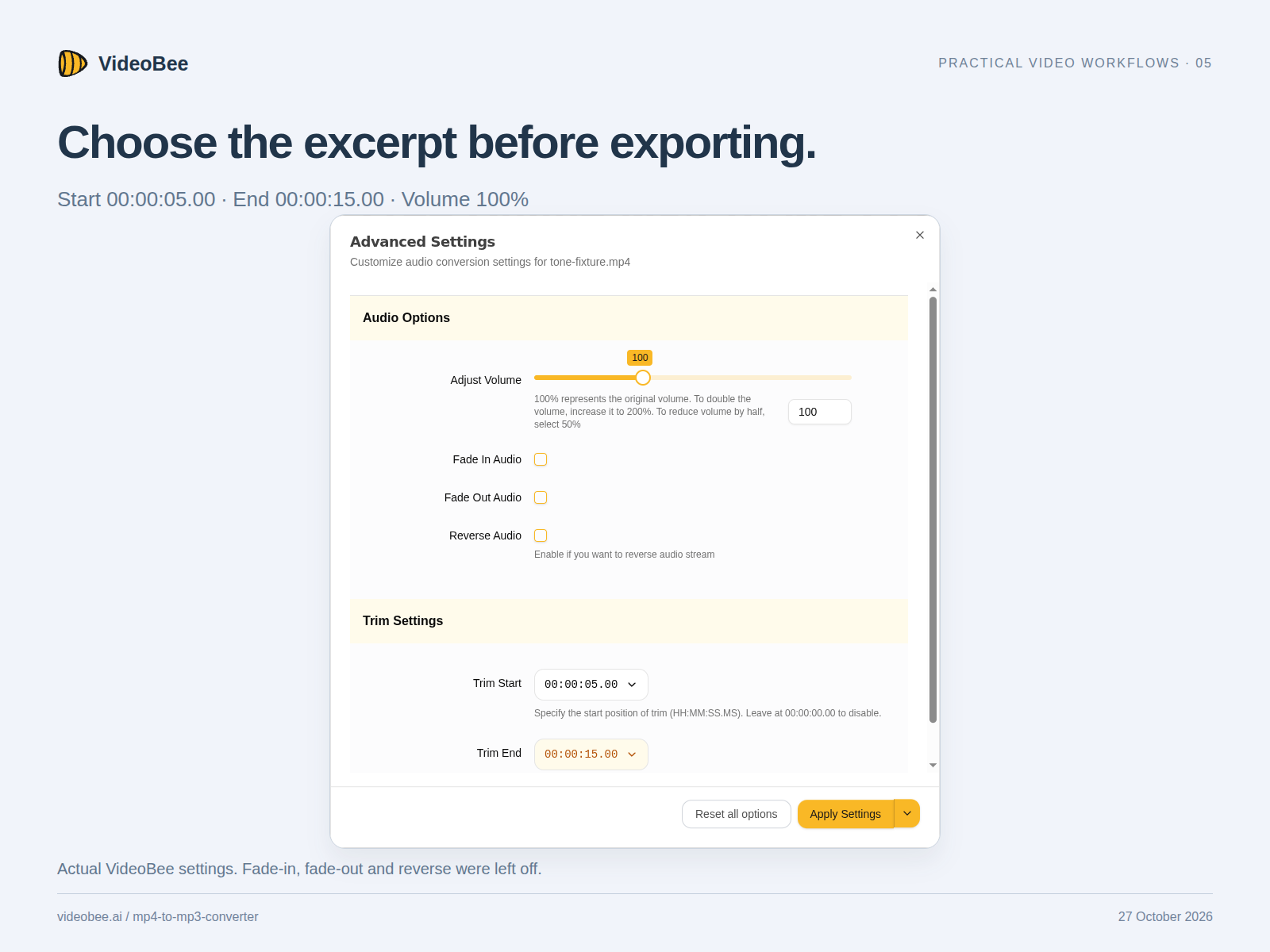
Actual browser capture of the settings used for the measured export. Effects were left off.
For a spoken excerpt, listen slightly before and after your proposed boundaries. Keeping the beginning of a sentence and its concluding phrase usually produces a more useful clip than cutting exactly at the first and last interesting word. If you need to make another selection after exporting, return to the original video rather than repeatedly converting the MP3.
Check what was actually exported
The downloaded file contained one MP3 audio stream, with these measured properties:
| Property | Downloaded result |
|---|---|
| File size | 160,851 bytes |
| Reported duration | 10.032 seconds |
| Audio codec | MP3 |
| Sample rate | 48,000 Hz |
| Channels | 2 |
| Reported audio bitrate | 128,000 bits/second |
| Video stream | None |
The selected interval was ten seconds; the file reported 10.032 seconds. Encoded-audio duration and a selected timeline range should be checked separately when timing is important. I have not treated the displayed selection as proof of sample-exact cutting.
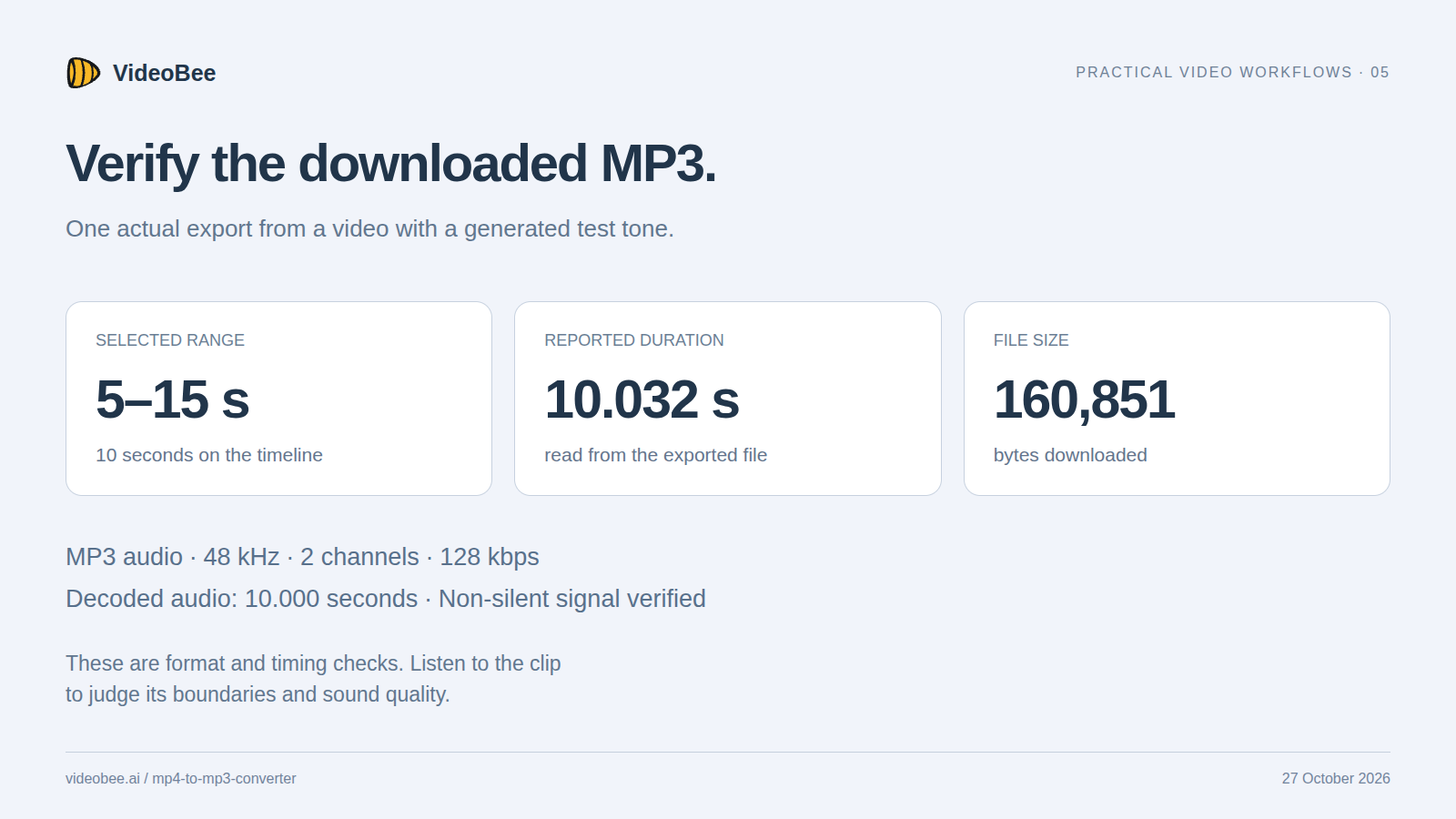
File measurements from ffprobe. This checks format and timing metadata, not a subjective improvement in sound quality.
A full decode with FFmpeg completed without reporting errors and yielded 480,000 mono samples at 48 kHz, exactly ten seconds of decoded audio. Its signal was non-silent. You can inspect your own result with:
ffprobe -v error \
  -show_entries stream=codec_type,codec_name,sample_rate,channels,bit_rate \
  -show_entries format=size,duration \
  -of json output.mp3
Then listen to the beginning, the ending, and the quietest important passage. Successful decoding does not establish that the selected excerpt begins at the right word or sounds comfortable to the listener.
Choose MP3 because the destination needs it
MP3 is a lossy audio format. Converting an existing compressed soundtrack to MP3 introduces another encoding step; a larger bitrate will not recover information already missing from the source. Keep the original video if you might need a different export later.
For a listening copy or a destination that specifically expects MP3, that tradeoff may be appropriate. For a developer workflow that can accept the original AAC track, a local stream-copy operation can preserve the compressed audio without another encode:
ffmpeg -i input.mp4 -map 0:a:0 -vn -c:a copy output.m4a
That example assumes the selected stream is compatible with the M4A container. It copies the first audio stream and does not trim it. Check the source codec and destination requirements before applying it to a batch. FFmpeg explains the distinction between copying streams and transcoding in its stream-copy documentation.
The browser workflow is useful for a one-off excerpt; explicit commands become useful when track selection, output format, or repeatability must be controlled across many files.
Keep volume changes and fades intentional
Start with the original level. Increasing volume can make an already loud source distort, and a fade can soften a word that the listener needs to hear. Use those controls to solve an audible problem rather than enabling them by habit.
If you need a waveform-based editing view, VideoBee also provides an audio cutter. The converter walkthrough above used its own time-selection settings; it did not require an additional pass through the audio cutter.
Because the online workflow uploads the source for processing, choose a local workflow for material that must remain on your device. Only use recordings you are authorized to process and share.
Verify each file before treating a batch as complete
When using the converter's batch features, check that the chosen time range exists in every input. A range suitable for a long interview can be invalid for a shorter clip. Name the outputs so they retain the source and the selected section, such as demo-question-05s-15s.mp3.
For downstream processing, record the original filename, selected start and end, output codec, actual duration, and size. Those small pieces of metadata make it much easier to explain why one file is missing, unexpectedly long, or different from the rest of the batch.
About the author
- Indie SaaS founder building small B2B products. Interested in product feedback, self-hosted tools, and practical AI workflows.
Comments
Join the discussionNo comments yet. Be the first to comment.