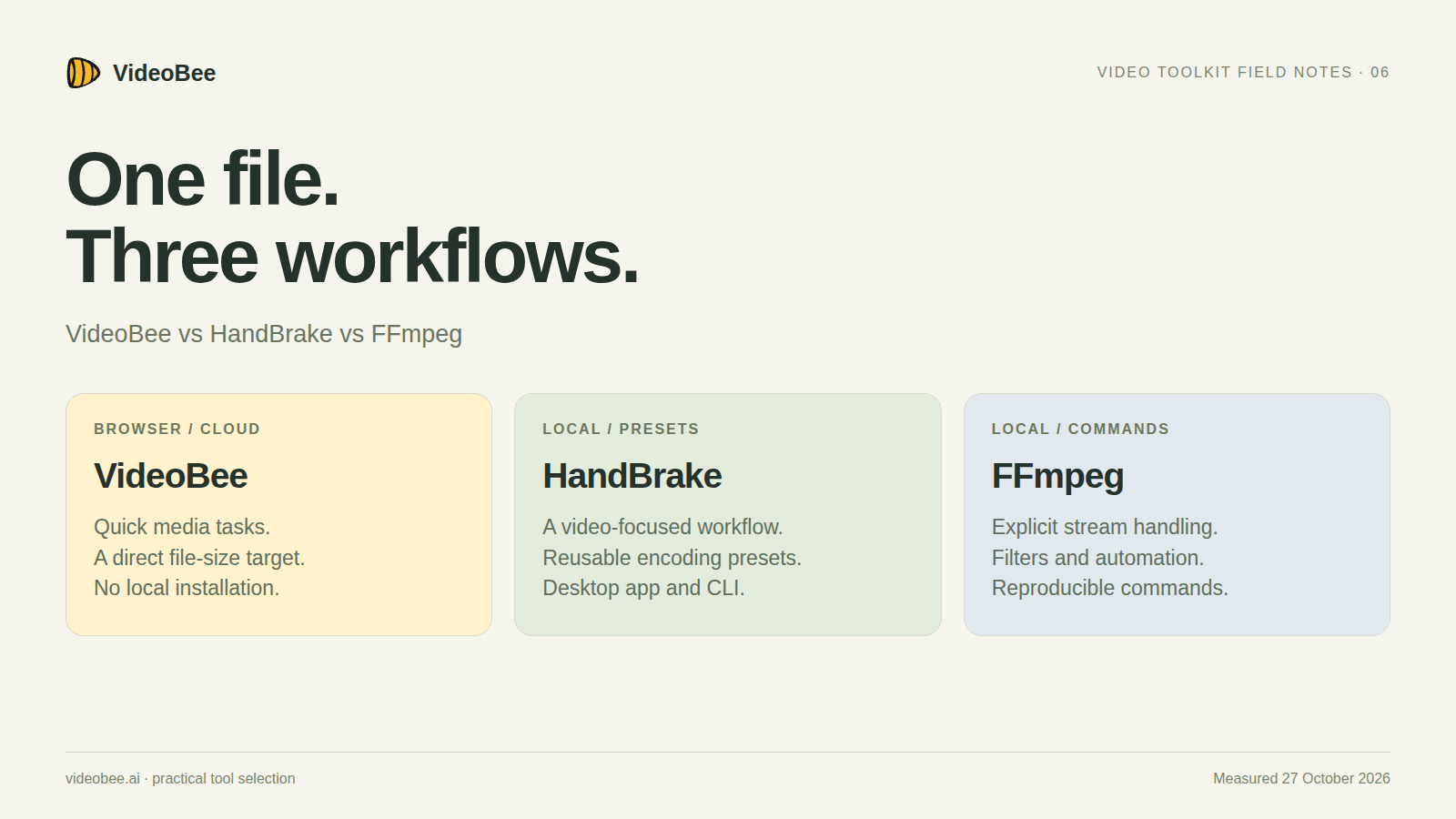
Use VideoBee when you want to finish a small media task in a browser, HandBrake when local video encoding with reusable presets fits the job, and FFmpeg when you need explicit stream handling or a workflow you can script in detail. The right choice depends on the operation, where the source may be processed, and how often you will repeat it.
This comparison is part of a VideoBee promotional campaign and was prepared with AI assistance. It includes a shared test fixture exported through all three tools on October 27, 2026. The settings were chosen to demonstrate different workflows, not to rank compression efficiency or visual quality.
Start with the operation you actually need
A file that is too large, a file that will not play, and a file that needs only its soundtrack are different jobs. Decide what should change before choosing the tool.
| Your starting point | A useful first choice | Why |
|---|---|---|
| One file, a browser, and a target upload size | VideoBee | Direct upload and target-size controls |
| Local files and a repeatable delivery preset | HandBrake | Video-focused presets, queues, and a CLI |
| Exact stream selection, filters, or application automation | FFmpeg | Explicit commands and a broad media toolchain |
| Keep the existing compressed video while changing its container | FFmpeg | Stream-copy mode when the destination supports the streams |
| A quick trimmed MP3 excerpt from a video | VideoBee or FFmpeg | A dedicated browser tool or an explicit audio command |
HandBrake can also be automated through its command-line interface. FFmpeg is not the only option for scripting; its advantage here is the range of operations and the control it exposes.
What the shared export test measured
The input was a constructed 30-second, 960 × 540 H.264/AAC MP4, measuring 5,704,280 bytes. It combined repeated MDN CC0 flower footage with a generated, amplitude-modulated 440 Hz test tone. The fixture was encoded with a regular 30 fps timeline so the tools received the same file.
The three export paths were:
- VideoBee: Basic Compression with a 3 MB target.
- HandBrakeCLI 1.7.2: the built-in Fast 1080p30 preset from the Ubuntu 24.04 package.
- FFmpeg 6.1.1: software x264, CRF 22, medium preset, 4:2:0 pixels, and AAC at 128 kbps.
The downloaded or locally generated outputs were inspected with ffprobe and fully decoded with FFmpeg:
| Export | Bytes | Reported duration | Video | Audio |
|---|---|---|---|---|
| VideoBee | 2,927,335 | 30.0 s | H.264, High | AAC |
| HandBrake | 3,616,650 | 30.016 s | H.264, Main | AAC |
| FFmpeg | 3,486,300 | 30.016 s | H.264, High | AAC |
All three retained 960 × 540 dimensions and completed a full decode without reported errors. The table is a record of what these settings produced. A size target and a quality target are different constraints, and the presets, audio settings, and profiles are not identical. A smaller row in this table is not evidence that its tool has a better encoder.
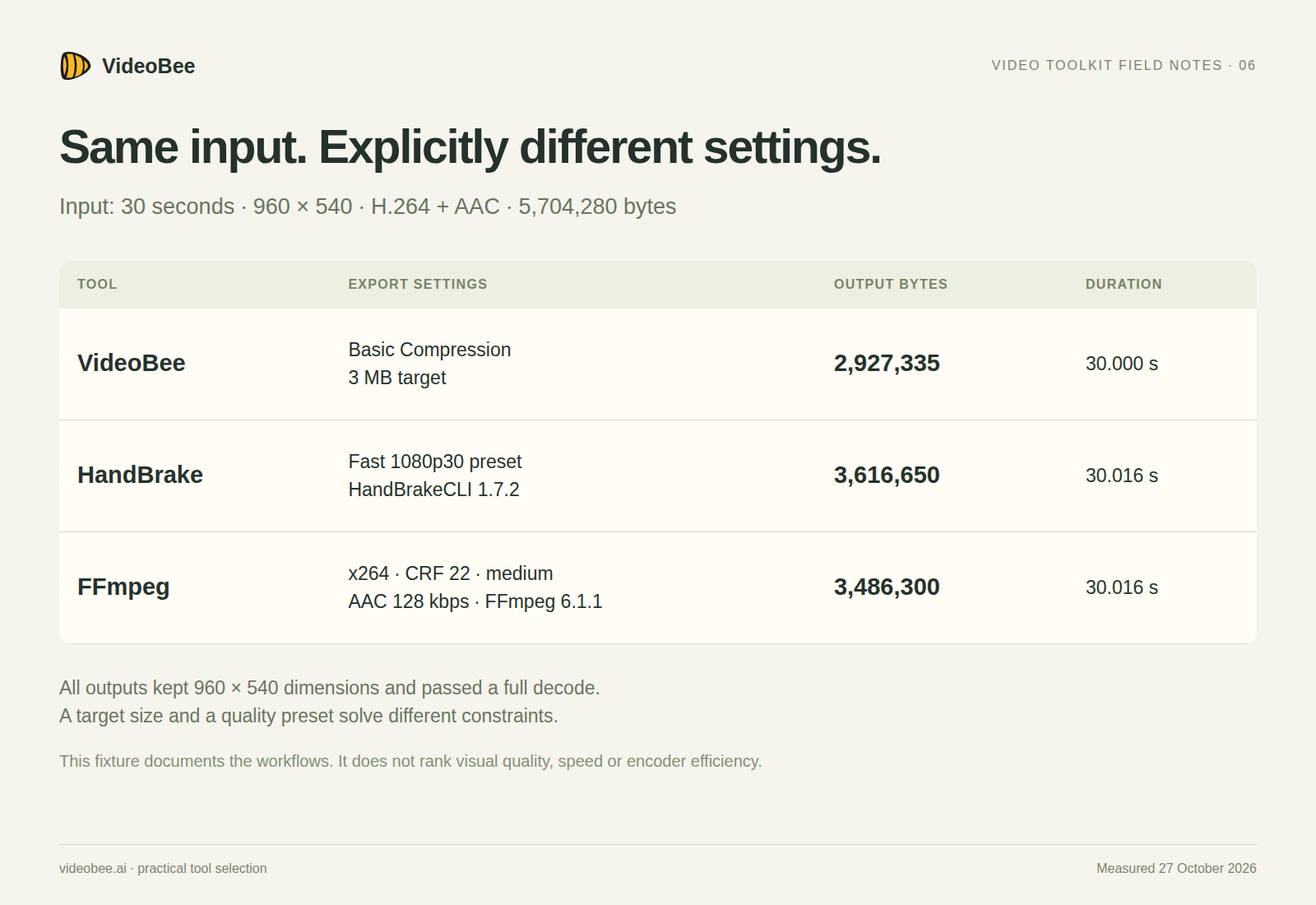
One controlled fixture, different representative settings. These results do not rank visual quality, speed or encoder efficiency.
VideoBee fits the one-off browser task
VideoBee brings compression, format conversion, video trimming, cropping, audio trimming, and MP3 extraction into a browser workflow. In the tests for this series, the tools accepted files and provided downloads without requiring an account or a local installation.
For the comparison export, I opened the compressor, uploaded the shared fixture, entered 3 in Basic Compression's output-size field, and downloaded the result. That interface is convenient when the immediate question is how to prepare a file for an upload or attachment.
The source is uploaded for cloud processing. That is a deciding factor for recordings that must stay on the device, and upload time is part of the experience. This test did not measure end-to-end processing speed, so it does not support a claim that the cloud route is faster or slower than the local tools.
Use the downloaded file as the evidence: inspect its size, play it, and check the detail that matters to the recipient. An output-format selector or a target-size field is a requested setting, not a complete description of the exported streams.
HandBrake fits local video encoding with presets
HandBrake describes itself as an open-source video transcoder for Linux, macOS and Windows. Its official presets offer starting points for particular delivery needs. Those presets still need checking against your source and destination.
The measurement here used HandBrake's CLI, not a timed test of its desktop interface:
HandBrakeCLI -i input.mp4 -o handbrake.mp4 \
  --preset "Fast 1080p30"
The preset name sets limits and choices; it does not mean every output becomes 1920 × 1080. This fixture stayed at 960 × 540. The log for this version reported software x264, the fast preset, RF 22, and AAC output at 160 kbps.
HandBrake is useful when you want a video-focused local workflow and a preset you can reuse across a queue. It also has a documented command-line interface for automation. Keep the version and preset with your job record because a preset's implementation can change between releases.
A specific boundary matters: HandBrake's documentation says it does not pass video through without conversion. If your job is a container change with the compressed video preserved, use a tool and operation that explicitly support that requirement.
FFmpeg fits precise operations and integration
FFmpeg is useful when the command itself should describe the transformation. For example, the third export in the table used:
ffmpeg -i input.mp4 \
  -c:v libx264 -preset medium -crf 22 -pix_fmt yuv420p \
  -c:a aac -b:a 128k \
  -movflags +faststart ffmpeg.mp4
For a compatible container change that should keep the existing streams, the operation is different:
ffmpeg -i input.mov -map 0:v:0 -map '0:a:0?' \
  -c copy output.mp4
The second command assumes the selected streams can be written to MP4. It selects the first video stream and an optional first audio stream, so it is not a promise to preserve every track. FFmpeg's stream-copy documentation explains why copying and transcoding are distinct operations.
That explicitness helps in an application, build job, or repeatable batch. It also gives you responsibility for quoting paths, selecting tracks, choosing compatible settings, checking exit status, and validating output. Save those decisions alongside the files instead of relying on a command copied without its assumptions.
Choose by constraints, then validate one representative file
For an occasional file you are comfortable uploading, the browser route removes setup work. For a local encoding queue, a HandBrake preset gives you a consistent starting point. For a pipeline that needs exact mappings and filters, FFmpeg lets those decisions live in code.
Before processing the full set, pick a representative file containing the difficult material: the smallest important text, the fastest movement, or the audio tracks that must be retained. Record the tool version or test date, input metadata, settings, output metadata, and any failure. That gives you a selection process you can repeat when the next batch is different.
About the author
- Indie SaaS founder building small B2B products. Interested in product feedback, self-hosted tools, and practical AI workflows.
Comments
Join the discussionNo comments yet. Be the first to comment.